

Understanding the Balance Sheet Section of Form 990
Estimated reading time: 14 minute(s)

Filing Form 990 comes with a lot of moving parts, and for many nonprofit finance teams, the balance sheet section is where things start to feel complicated. But once you understand the structure, completing Parts X and XI of the 990 tax form is straightforward. This guide walks you through each step clearly so you can file with confidence.
What is the Form 990 Balance Sheet?
Part X of Form 990 is the Balance Sheet. It’s a snapshot of your organization’s financial position, covering what you own (assets) and what you owe (liabilities) at both the beginning and end of the tax year.
The IRS uses this section to verify your organization’s financial health and ensure your reported figures are internally consistent. Getting it right isn’t just good practice; it’s a filing requirement.
Part X: How to Complete the Balance Sheet
Step 1: Enter Your Assets
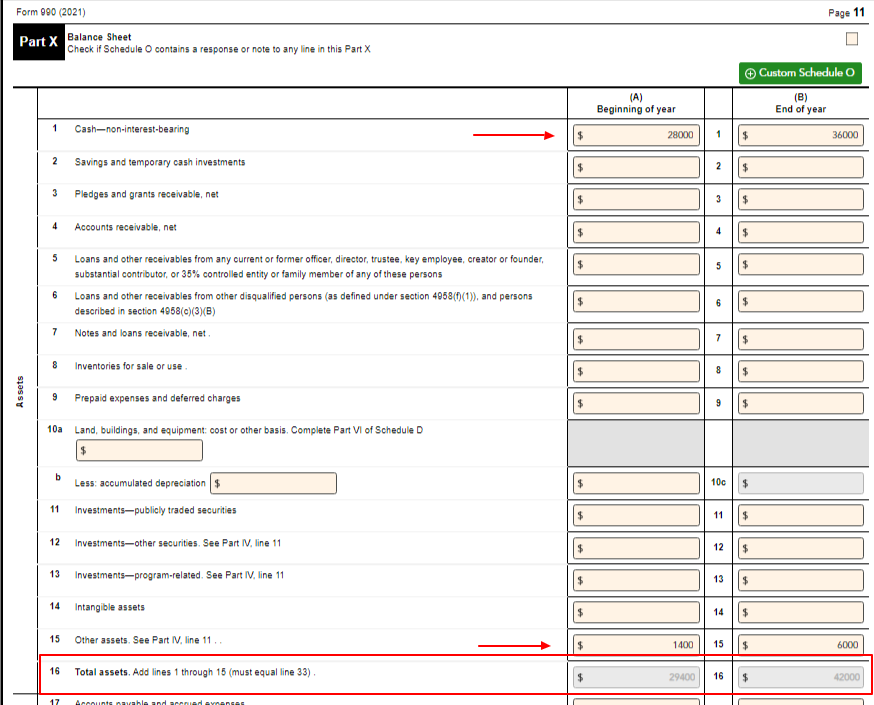
Lines 1 through 15 cover all asset categories, including:
- Cash (non-interest-bearing)
- Savings and temporary cash investments
- Pledges and grants receivable
- Accounts receivable
- Loans and other receivables
- Notes and loans receivable
- Inventories for sale or use
- Prepaid expenses and deferred charges
- Land, buildings, and equipment (net of accumulated depreciation)
- Investments (publicly traded securities, other securities, program-related)
- Intangible assets
- Other assets
For each line, enter the value at the beginning of the year (Column A) and the end of the year (Column B). Line 16 calculates your total assets by adding lines 1 through 15.
| Note: Line 16 must equal Line 33. |
Step 2: Enter Your Liabilities
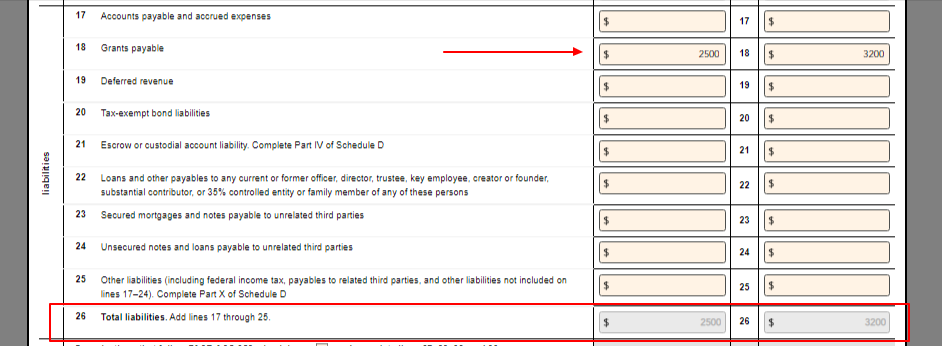
Lines 17 through 25 cover all liability categories, including:
- Accounts payable and accrued expenses
- Grants payable
- Deferred revenue
- Tax-exempt bond liabilities
- Escrow or custodial account liabilities
- Loans payable to current or former officers or disqualified persons
- Secured mortgages and notes payable
- Unsecured notes and loans payable
- Other liabilities (including federal income tax payable)
Enter beginning-of-year and end-of-year figures for each. Line 26 totals your liabilities from lines 17 through 25.
Step 3: Complete the Net Assets Section and Confirm Lines 16 and 33 Match
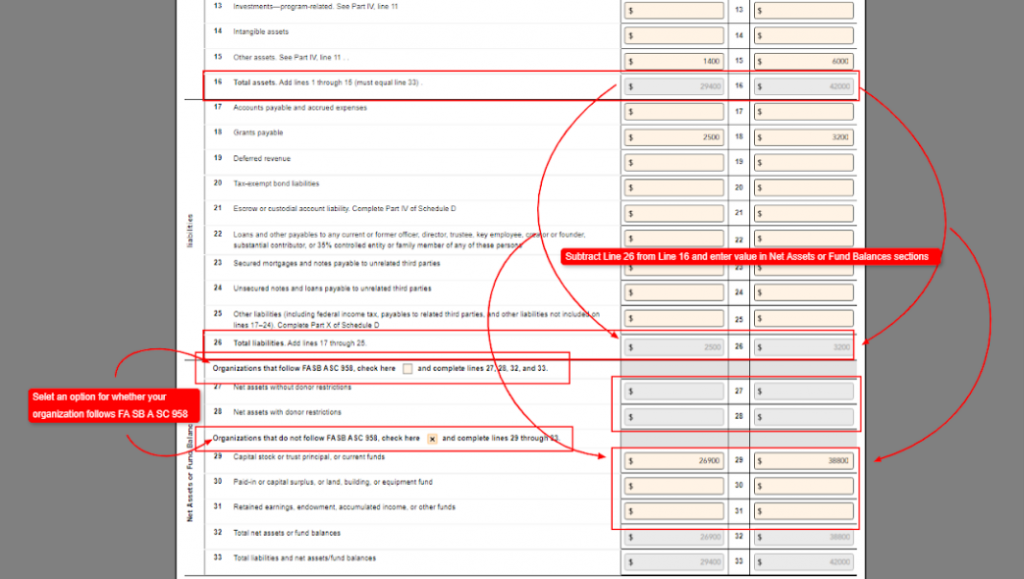
After liabilities, you’ll reach the Net Assets or Fund Balances section. First, indicate whether your organization follows FASB ASC 958:
- If yes: Check the box and complete lines 27 and 28 (net assets without and with donor restrictions)
- If no: Check the box and complete lines 29 through 31 (capital stock, paid-in surplus, retained earnings, etc.)
Line 32 calculates the difference between your total assets (line 16) and total liabilities (line 26). This is your net assets or fund balance figure.
Line 33 is the sum of lines 26 and 32, representing total liabilities and net assets/fund balances.
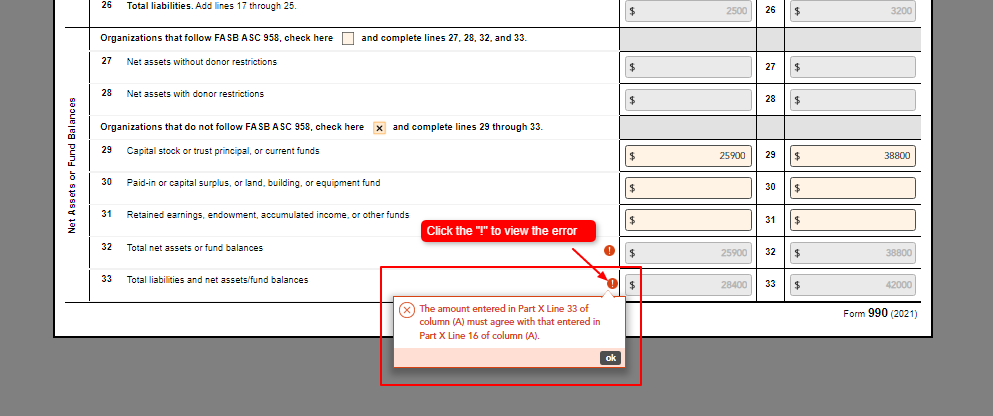
| Important: The amount on Line 33 must equal the amount on Line 16 for both columns. If they don’t match, you have an error that needs to be resolved before transmitting. |
Part XI: How to Complete the Reconciliation of Net Assets
Part XI reconciles your net assets from the beginning of the year to the end, accounting for revenue, expenses, and any other changes.
Lines 1 through 4 use data entered elsewhere in your 990 tax form:
- Line 1: Total revenue (from Part VIII)
- Line 2: Total expenses (from Part IX)
- Line 3: Revenue less expenses
- Line 4: Net assets at the beginning of year (must equal Part X, Line 32, Column A)
Step 4: Enter Any Additional Revenue or Expense Adjustments
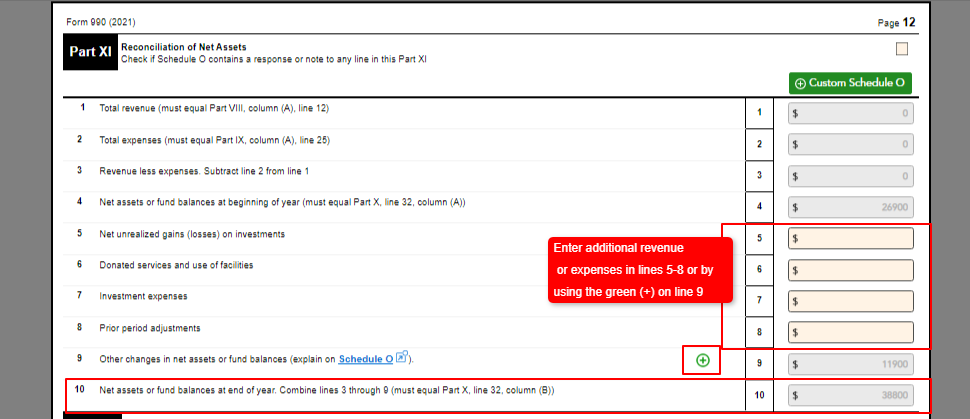
Lines 5 through 8 are for additional items that affect net assets but aren’t captured in your standard revenue and expense totals:
- Line 5: Net unrealized gains or losses on investments
- Line 6: Donated services and use of facilities
- Line 7: Investment expenses
- Line 8: Prior period adjustments
You can also add other changes on Line 9 using the custom entry option.
Line 10 totals lines 3 through 9 and represents net assets at the end of the year. This figure must match Line 32 (Column B) of Part X. If it doesn’t, review your entries before filing.
Step 5: Review Any Errors Before You Transmit
File Your Form 990 Balance Sheet with Confidence Using Tax990
The balance sheet is one of the most scrutinized sections of Form 990. The IRS requires Lines 16 and 33 to match exactly, Part XI has to be reconciled cleanly, and one miskeyed figure can trigger a rejection and send you back to square one.
Tax990 is built to take that pressure off. As you work through Parts X and XI, the platform flags mismatches and calculation errors in real time, before you ever hit transmit. If Line 33 doesn’t equal Line 16, you’ll know immediately. If your Part XI reconciliation is off, Tax990 points you to the problem rather than leaving you to hunt for it.
And because all required schedules are automatically included based on your data, you don’t have to worry about whether your balance sheet figures are triggering additional reporting requirements you might have missed.
To top it off, Tax990 is an IRS-authorized e-file provider built specifically for tax-exempt organizations. SOC-2 certified, with live support available via chat, phone, and email if you need a hand at any point in the process.


Leave a Comment